Dovydas Bykovas8 min read
How to Securely Connect Loki to Oxynote for Live Logs
This guide puts a password in front of Loki, connects it to Oxynote as a data source and shows your logs live on a page with LogQL.
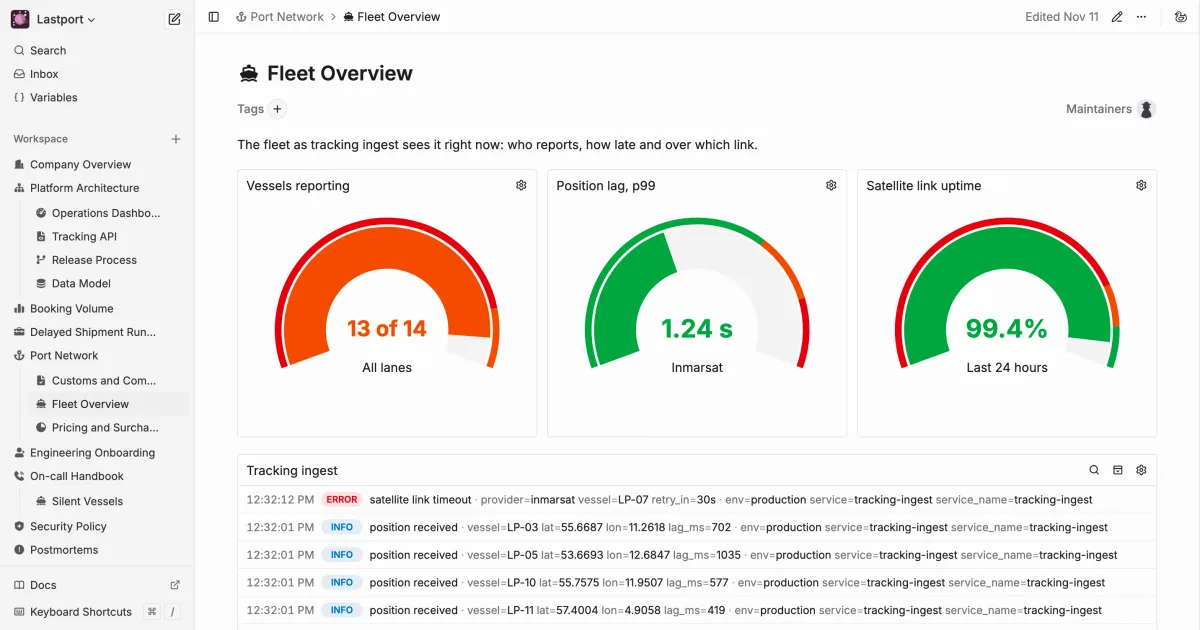
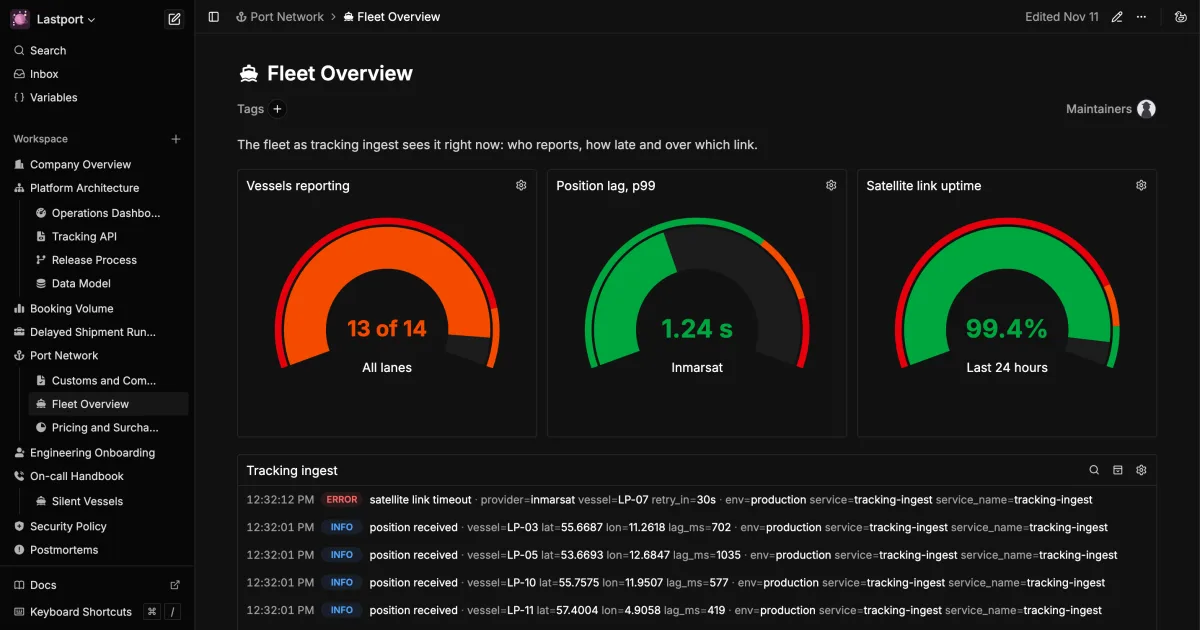
Oxynote's Live Logs block queries Loki directly with LogQL, so a page can show the newest log lines next to the charts and the text that explain them. Out of the box, Loki has no login: anyone who can reach its port can read every log line and send new ones. So put a password in front of it before you connect Oxynote.
This guide covers securing Loki, connecting it to Oxynote and three example pages built on it.
What You Need
- Oxynote v0.10 or newer, running. See the install guide.
- Loki 3.0 or newer.
- Access to the machine Loki runs on, to run a reverse proxy next to it: a small web server that receives each request first, so Loki itself isn't open to the public.
This guide uses Caddy as the reverse proxy, because it's easy to set up and widely used, so most problems you might hit already have answers online. The commands below run Loki 3.7 and Caddy 2.11 with Docker Compose. If Loki already runs in a Compose file, copy the caddy service from the example below into that file and remove Loki's own ports.
Put a Password on Loki
Unlike Prometheus, Loki can't check a password itself, and its docs leave that to a reverse proxy. Caddy passes a request on to Loki only when it carries the right password.
Caddy stores bcrypt hashes, not the passwords themselves. You can use Caddy's image to generate the hash from the password:
docker run --rm caddy:2.11.7-alpine caddy hash-password --plaintext 'change-me'
# $2a$14$LxLKG.Q8nUiPMOaZFIp72uAk6bG48eKF63r2vR0Hox5NZOsvSK1Uy
Replace change-me with a password of your own. --rm removes the container once it has printed the hash.
Caddy reads its settings from a config file called Caddyfile. Create one in an empty folder and populate it with the newly generated Oxynote credentials:
:3100 {
    @oxynote {
        method GET
        path /loki/api/v1/*
    }

    handle @oxynote {
        basic_auth {
            oxynote $2a$14$LxLKG.Q8nUiPMOaZFIp72uAk6bG48eKF63r2vR0Hox5NZOsvSK1Uy
        }
        reverse_proxy loki:3100
    }

    respond 403
}
:3100makes Caddy listen on port 3100, where Loki usually listens.@oxynotematches the requests that only read from Loki:GETrequests to paths under/loki/api/v1/. Oxynote sends nothing else.handle @oxynoteasks for the password on those requests, then passes them on to Loki.respond 403refuses everything else, such as sending logs to/loki/api/v1/pushor Loki's admin paths. With the password, Oxynote can read your logs but never change them.
Then create docker-compose.yaml next to the Caddyfile. It runs both containers:
services:
  loki:
    image: grafana/loki:3.7.9
    volumes:
      - loki-data:/loki

  caddy:
    image: caddy:2.11.7-alpine
    ports:
      - "3100:3100"
    volumes:
      - ./Caddyfile:/etc/caddy/Caddyfile:ro

volumes:
  loki-data:
lokihas noports, so only the other containers on this network can reach it. If Loki kept its own port open, anyone could skip Caddy and its password.3100:3100publishes Caddy's port on the machine so that Oxynote can reach it../Caddyfile:/etc/caddy/Caddyfile:romounts the file into the Caddy container, read-only.loki-datakeeps the logs in a Docker volume, so they survive a restart.
The agent that sends your logs, such as Grafana Alloy, still pushes straight to http://loki:3100. So it has to run on the same Docker network, such as in the same Compose file. An agent on another machine can't reach Loki anymore, so it needs its own way in.
Start both and check that it worked. Without the password, Caddy answers 401. With it, you get Loki's version. A push is refused even with the password:
docker compose up -d

curl -s -o /dev/null -w '%{http_code}\n' \
  localhost:3100/loki/api/v1/status/buildinfo
# 401

curl -s -u oxynote:change-me localhost:3100/loki/api/v1/status/buildinfo
# {"version":"3.7.9",...}

curl -s -o /dev/null -w '%{http_code}\n' -u oxynote:change-me \
  -X POST localhost:3100/loki/api/v1/push
# 403
Encrypt the Connection
The password travels with every request. Over plain HTTP, anyone on the network between Oxynote and Loki can read it. When they run on different machines, let Caddy serve HTTPS. Setting that up is out of scope for this guide, so we recommend following Caddy's HTTPS docs.
Connect It in Oxynote
Open Settings, go to External Data Sources and click Connect next to Loki. Then fill in the form:
- Data Source Nickname: the name pages show, such as
Platform Logs. - Data Source URL:
http://<host>:3100, orhttps://once Caddy serves HTTPS. - Auth Username and Auth Password:
oxynoteand its password. - CA Certificate, optional: if Caddy signs its certificate with its own certificate authority (CA), paste that CA here. Oxynote then trusts only it.
The host is where Oxynote's container finds Caddy, and localhost there means the container itself, not your machine:
- If Caddy runs in Docker on the same network as Oxynote, use its service name,
caddy. Notloki, which would skip the password. - If it runs on the same machine as Oxynote but on a port published to that machine, use
host.docker.internal. Docker Desktop on Mac and Windows provides that name. On Linux, add--add-host=host.docker.internal:host-gatewayto Oxynote'sdocker run. - Anywhere else, use its hostname.
Oxynote doesn't follow redirects, such as from http:// to https://. If the URL you entered redirects somewhere else, enter the address it redirects to instead.
Test & Save asks Loki for its version with the credentials you entered. A wrong password shows "Authentication credentials are incorrect", and a Loki older than 3.0 shows that its version isn't supported. With the right one, the data source joins the list with a green tick:
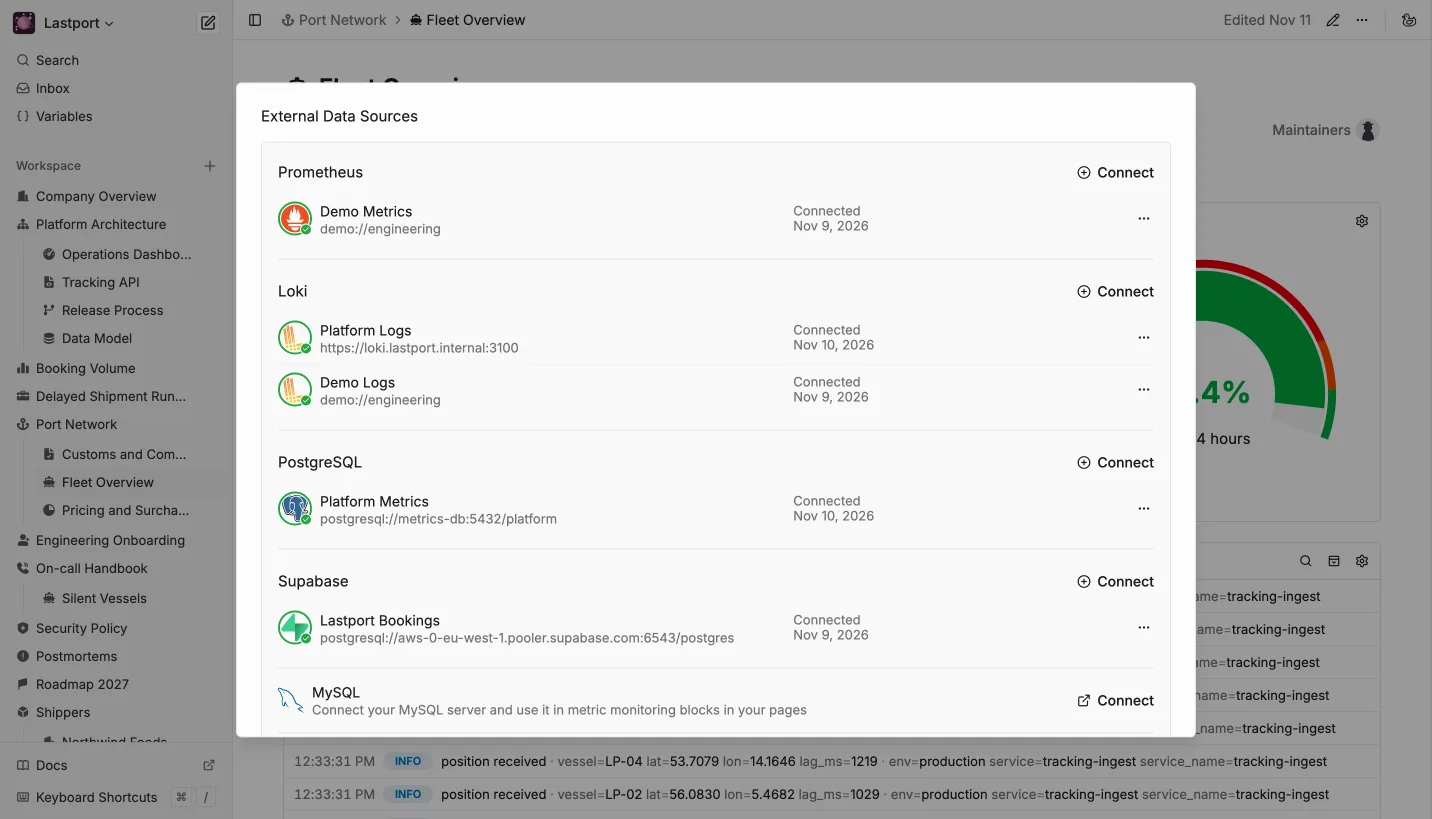
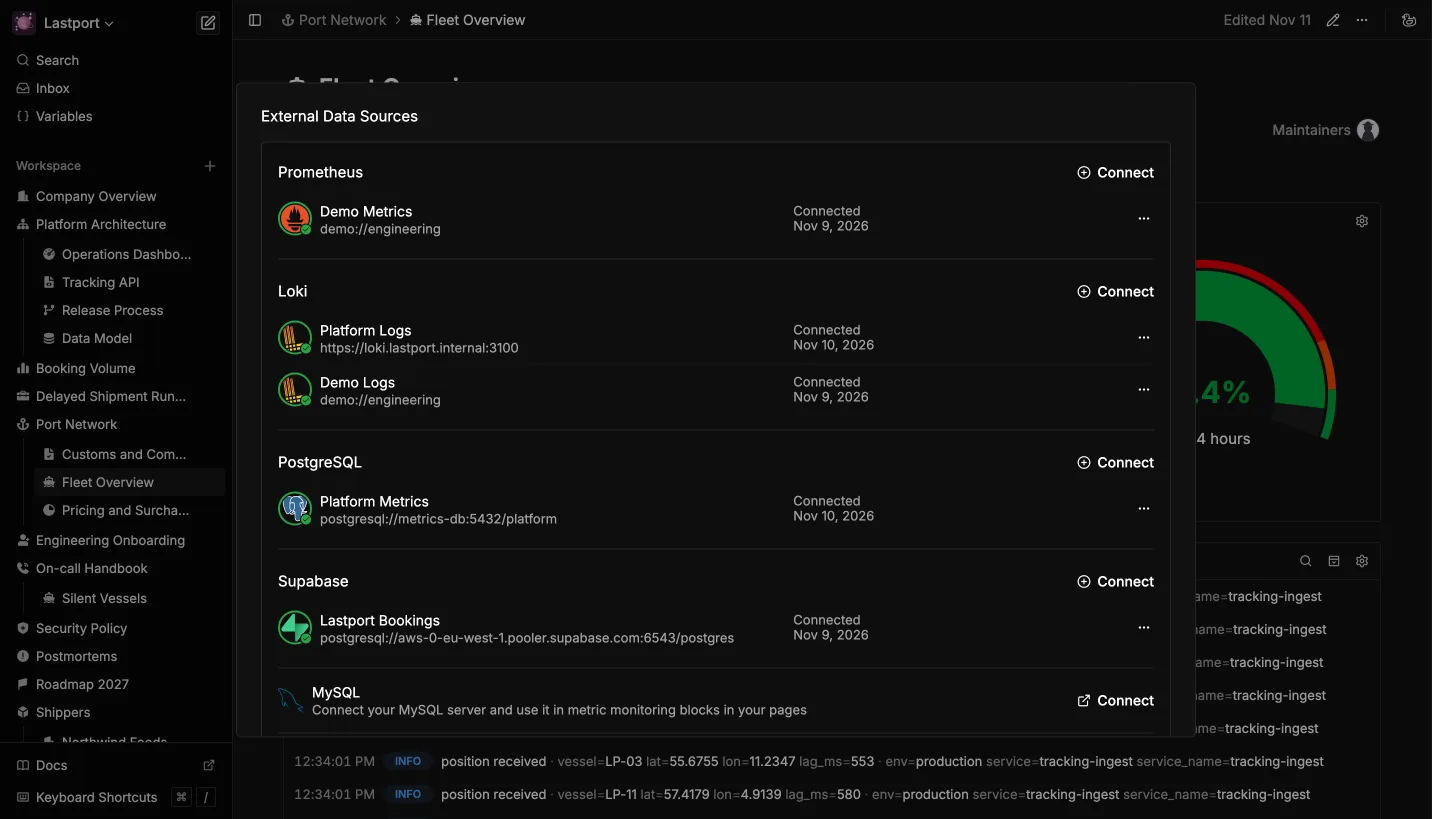 Platform Logs, connected through Caddy
Add the First Live Logs Block
On any page, type / and choose Live Logs. Pick the data source and write a LogQL query. The editor completes labels, their values and the steps of a query as you type.
This one shows the errors of Lastport's booking service, from the demo workspace below:
{service="booking"} | json | level="error"
A LogQL query reads from left to right:
{service="booking"}picks the streams, the logs whose labels match. Loki indexes only these labels, so this part is fast.| jsonreads the fields out of each line, which this service writes in JSON. For lines ofkey=valuepairs, use| logfmt.| level="error"keeps the lines whoseleveliserror.
The steps after the braces read every line of those streams, which is slower. So on a busy service, make the braces as narrow as you can, such as {service="booking", env="production"}.
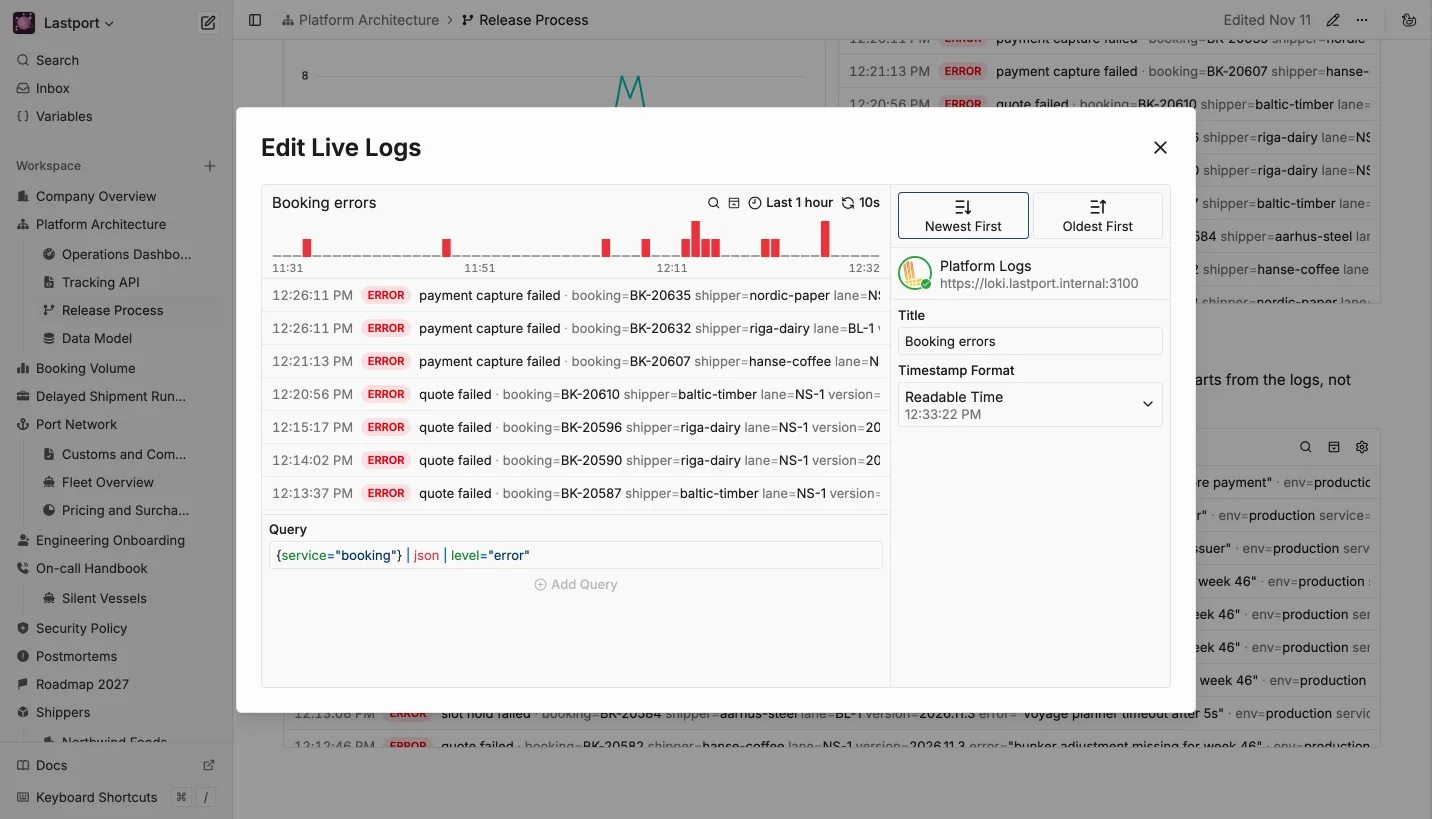
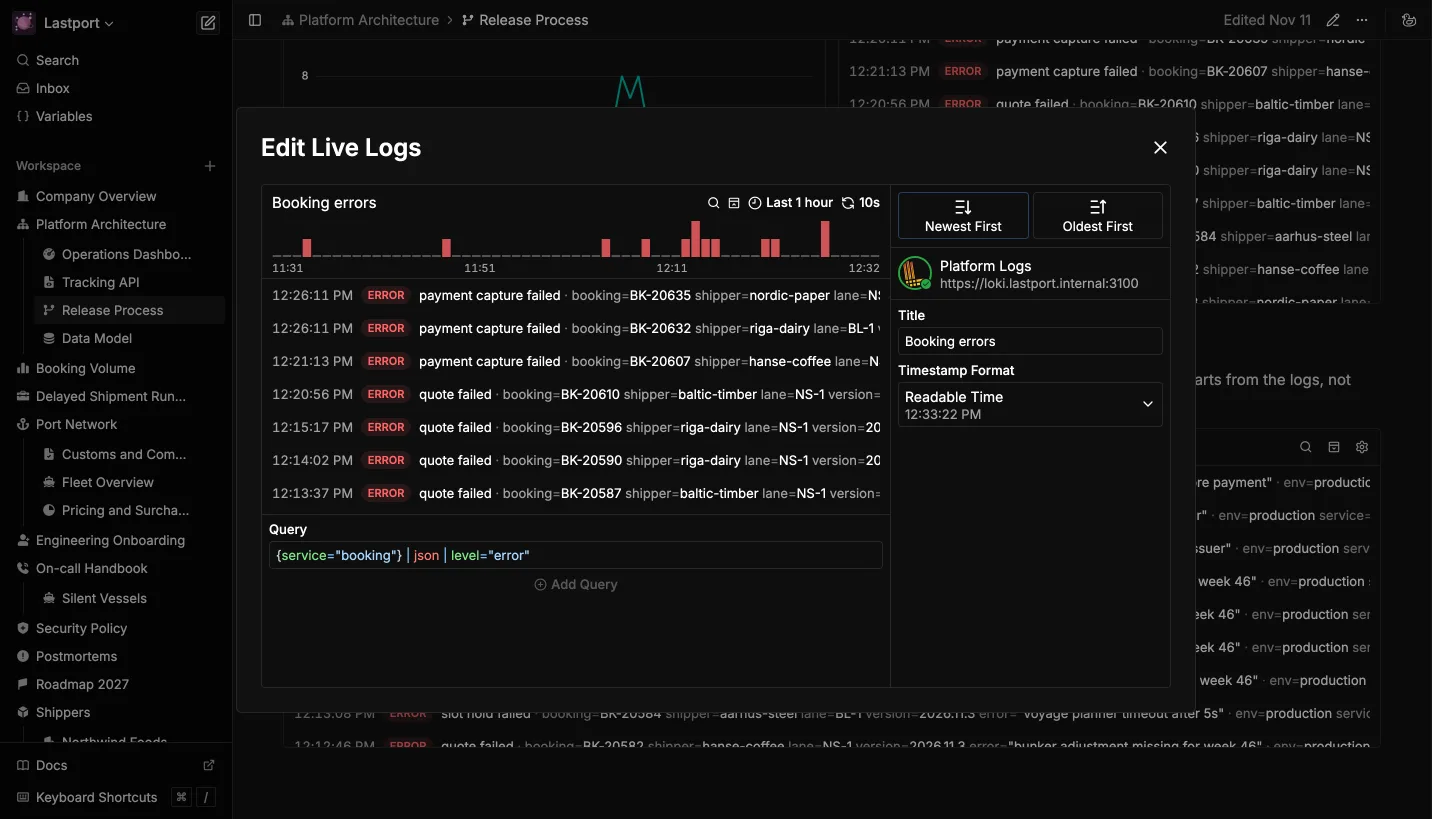 The booking service's errors, newest first
On the right, Newest First and Oldest First set the order of the lines, and Timestamp Format sets how each line's time looks. Add Query adds a second query, and the block merges both by time. Above the lines, the time range and refresh interval work as they do on charts.
Loki 3.1 and newer work out each line's level on their own and store it as detected_level. Oxynote marks each line with it and splits the log volume chart above the lines by level. On Loki 3.0, it reads a level label instead.
Anyone viewing the page can narrow the block down without editing the query. The search box matches the raw log line. Open a line, and each field has buttons to show only lines with that value, or to hide them.
Three Pages Worth Building
The screenshots come from a demo workspace for Lastport, a made-up shipping company that moves containers between mid-sized ports. Its platform runs four services, such as booking and tracking-ingest, and each of them sends its logs to the same Loki server.
A Runbook With Its Evidence
Lastport's ships report their position over satellite every 30 seconds, and a service called tracking-ingest receives them. When a ship stops reporting, tracking-ingest logs a warning every minute with how long the ship has been silent. Some stretches of sea have no satellite signal, so a ship there is expected to go quiet, and its warnings carry shadow=true.
Lastport's On-call Handbook has a page for this. It says that a ship silent for over 10 minutes, outside those stretches, is a SEV2, Lastport's second-highest incident level. The block under the rule shows only the warnings that count:
{service="tracking-ingest"} | logfmt | silent_for > 10m | shadow="false"
LogQL compares silent_for as a duration, so 12m30s passes and 4m10s doesn't.
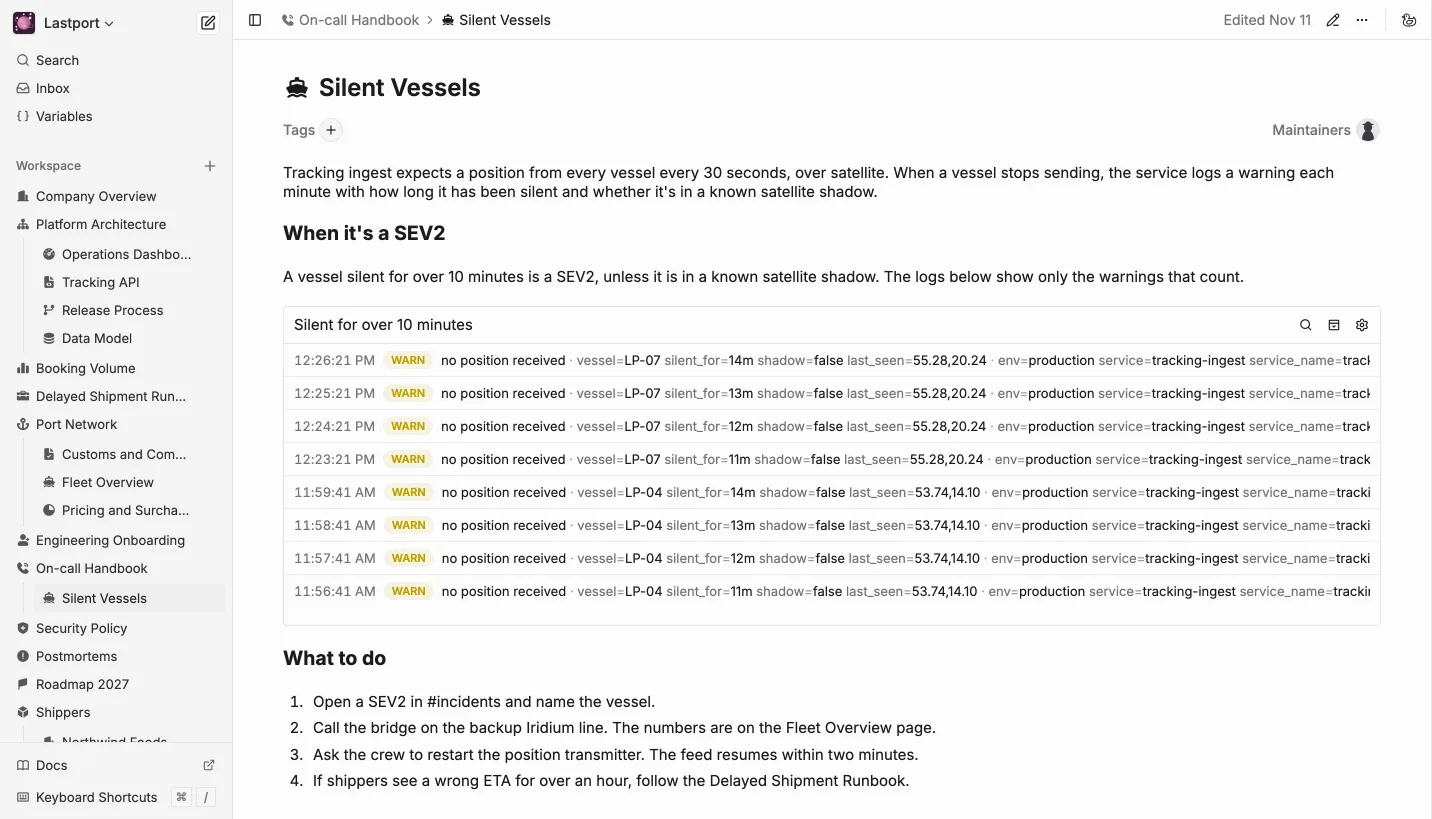
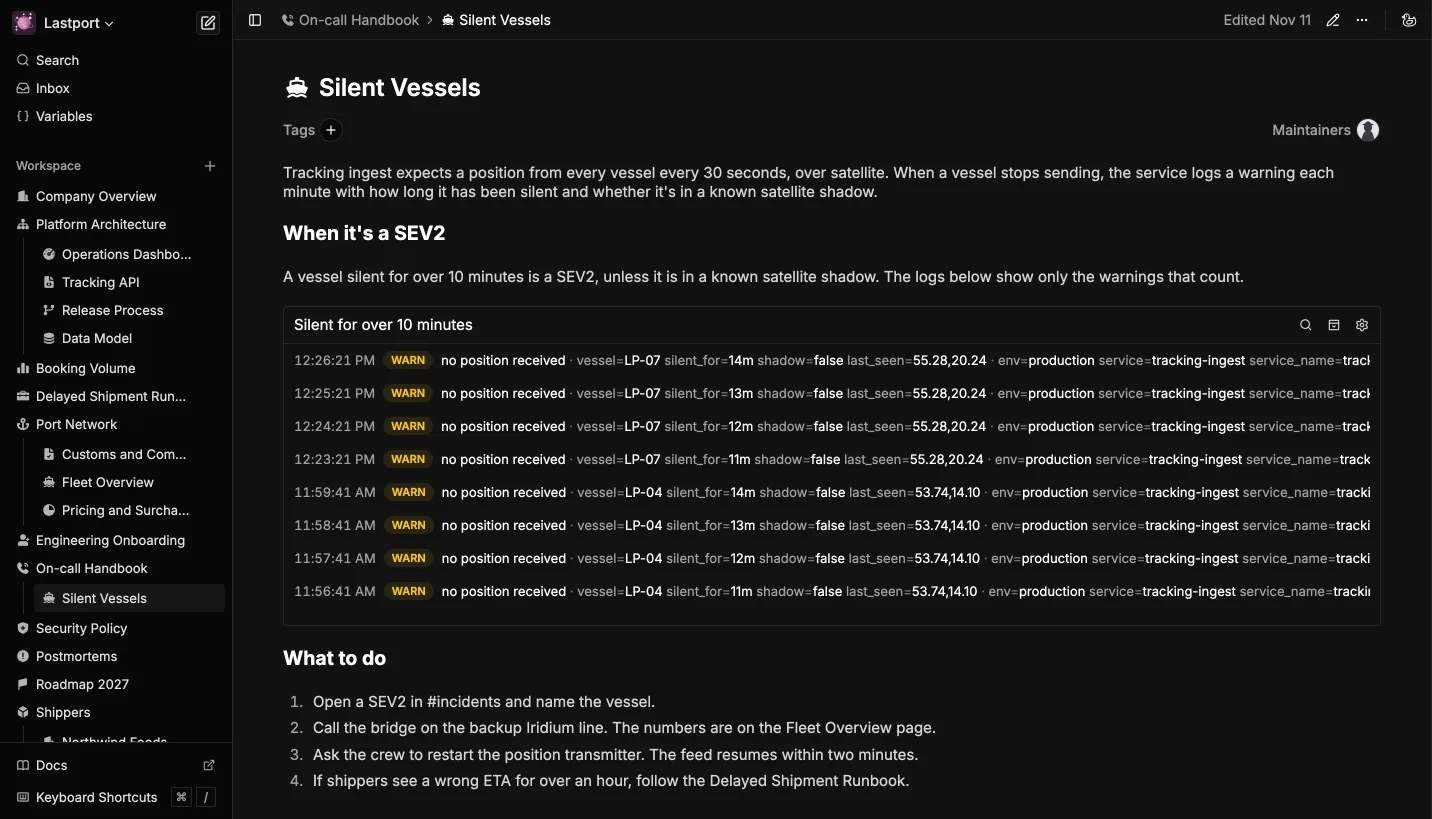 The SEV2 rule with the logs that check it
The engineer on call reads the rule and sees the ships that break it on the same page.
Logs Next to the Chart They Explain
The Release Process page says a new version of the booking service first runs alongside the old one and gets 5% of the traffic for 15 minutes. This trial copy is called a canary, and its logs carry the label track="canary". During those 15 minutes, a chart of failed bookings from Lastport's PostgreSQL sits next to the canary's errors:
{service="booking", track="canary"} | json | level="error"
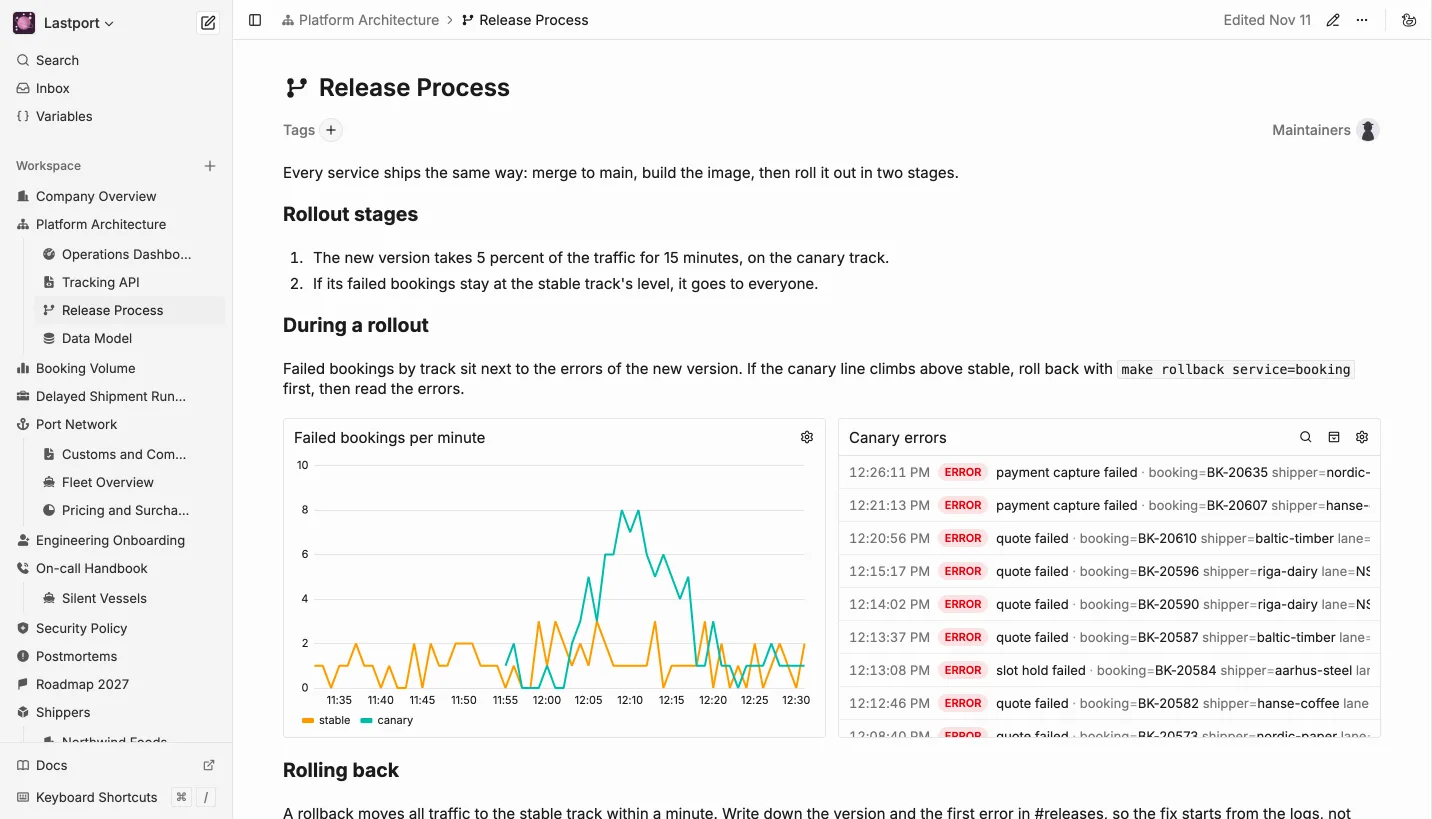
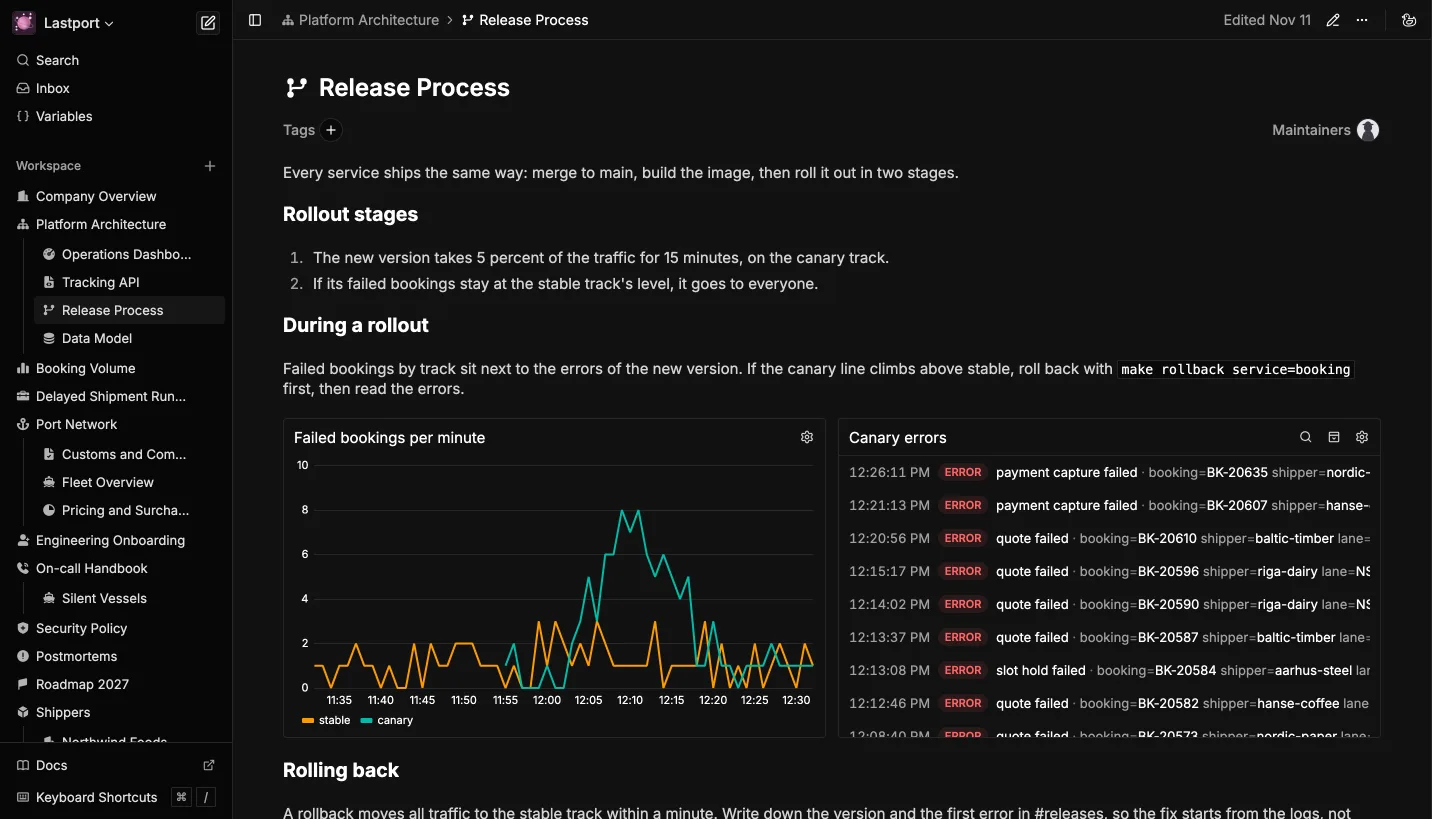 Failed bookings next to the errors behind them
If the canary's line climbs above the stable one, the page says to roll back first and read the errors after. The lines next to the chart then say which error caused the jump. To put a Live Logs block next to a chart, drag it by its handle onto the chart's side.
A Page Support Can Read
Northwind Foods is one of Lastport's customers, and its page holds what support needs to know about it. Lastport tells customers about their containers with webhooks: messages it sends straight to the customer's own system. Two services log about Northwind: the booking service, in JSON, and the notifications service, which sends the webhooks, in key=value pairs. One query can't read both formats, so the block has two:
{service="booking"} | json | shipper="northwind-foods"
{service="notifications"} | logfmt | shipper="northwind-foods"
The block merges them by time, so each booking reads as one story: quoted, held, paid and confirmed, then every webhook Lastport sent about it.
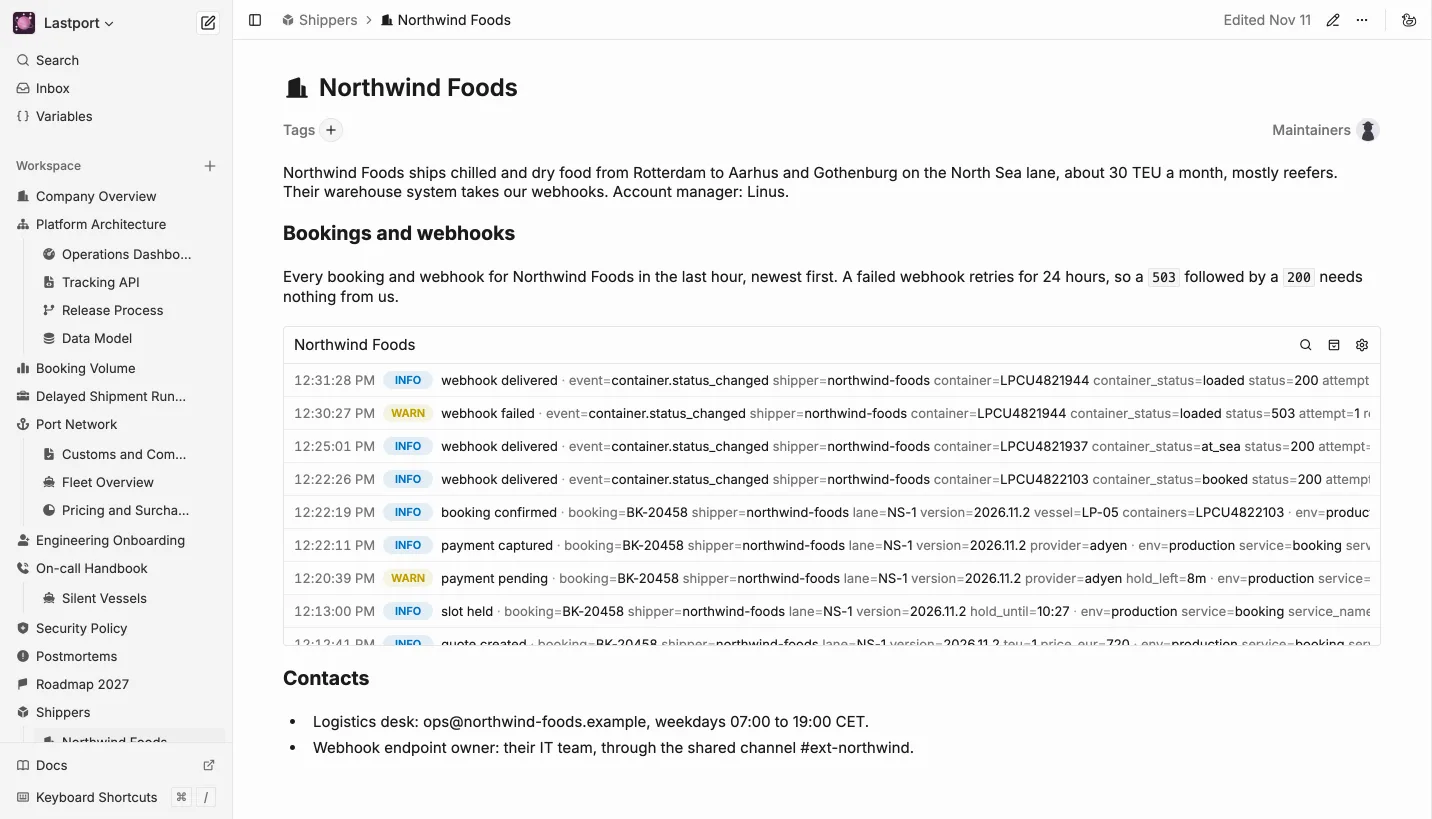
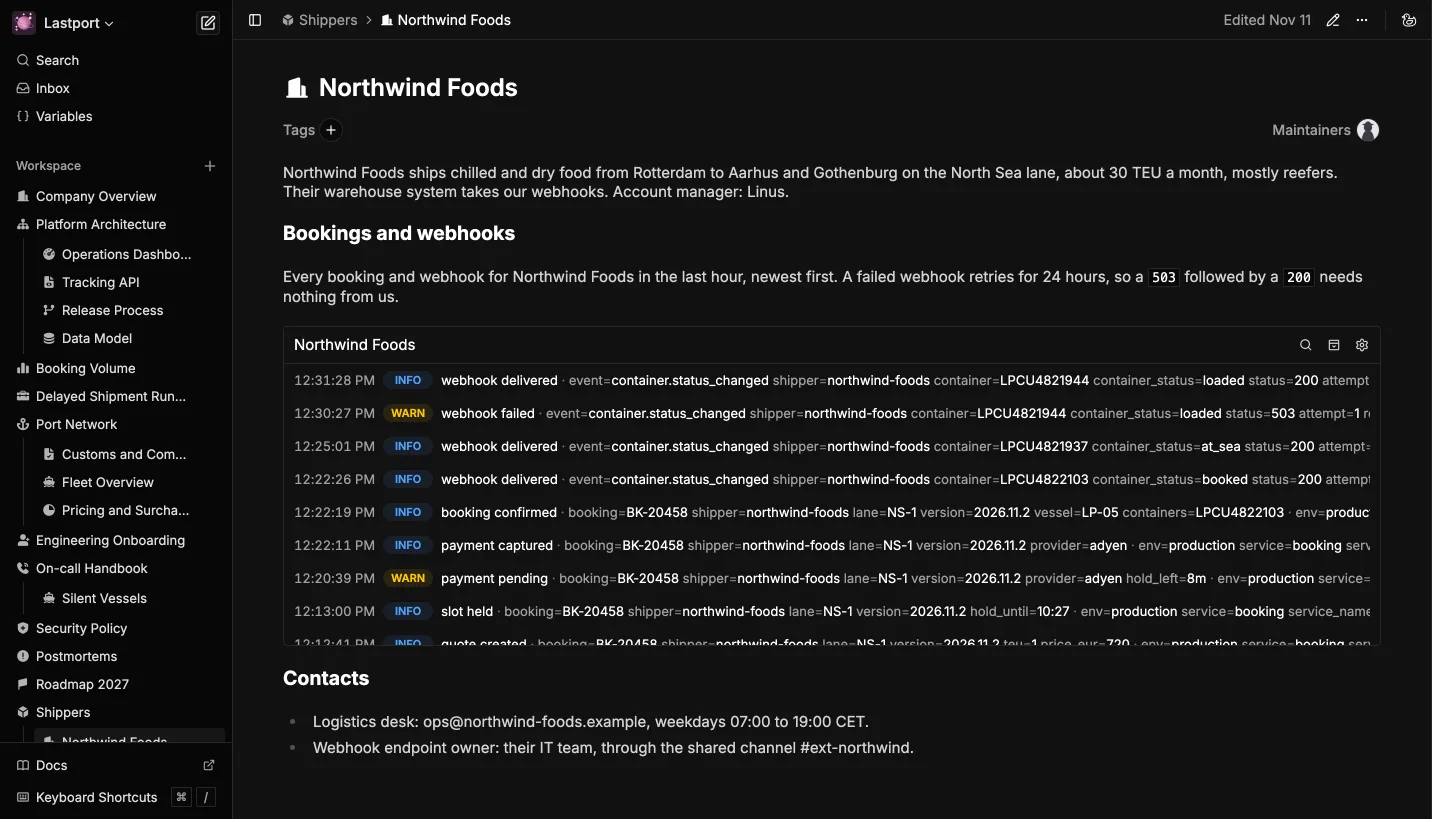 Northwind Foods' bookings and the webhooks about them
When Northwind asks whether a webhook was sent, support can answer without asking an engineer.
Wrapping Up
Your logs now sit behind a password, and since Caddy only lets GET requests through, Oxynote can read them but never change them. When Oxynote and Loki run on different machines, add HTTPS in Caddy as well, so the password itself stays off the network.
With that in place, your logs are most useful next to the metrics they explain. Runbooks, release pages and customer pages are good places to start, since each one can show the numbers and the lines behind them. To add the charts, see how to connect Prometheus or PostgreSQL.
Oxynote is open source and runs as one Docker container: github.com/oxynote/oxynote. If you need help or have a suggestion, come talk to us on Discord.