Dovydas Bykovas8 min read
How to Write RFCs and ADRs
This guide covers what a good RFC and ADR answer, gives you a template to copy, and builds one in Oxynote, where the proposal becomes the record when its draft is merged.
Joe Beda, who co-created Kubernetes, once described what happened to its first design doc:
I wrote a design doc/PRD for k8s that outlined the basic API, distributed structure and why/how it related to open source and the marketplace. I lost it when I left google. It was a google doc IIRC and wasn't checked into source control.
Most teams lose decisions in smaller ways. The proposal is argued in one tool, the decision is recorded in another or not at all, and a year later nobody can say why the system works the way it does.
This guide covers what a good request for comments (RFC) and architecture decision record (ADR) answer, a template you can copy, and a decision built in Oxynote, from the first draft to the accepted record.
Why Proposals and Decisions Get Lost
Most teams write proposals in Google Docs or Notion, because commenting there is easy. A reviewer selects a sentence, asks a question, and the author answers in the same thread. The trouble starts after a few rounds of comments, when it's hard to see what changed in the doc since you last read it. Once the decision is made, nothing marks which version was agreed. And the decision rarely gets copied anywhere more permanent.
Other teams keep their records as Markdown in git, next to the code. That gives them a review, a diff, and a history. But a pull request is a poor place to discuss writing, and people outside engineering rarely open the repository. Oxide, a company that builds server racks, keeps its design documents in a GitHub repository and wrote about the trade-off:
Whilst a repo is a useful storage and collaboration tool, there are a number of drawbacks: it doesn't provide the best reading experience, is limited in terms of AsciiDoc support, and is challenging to share externally.
So teams end up choosing between a good discussion and a good record.
An RFC and an ADR Are One Decision at Two Stages
An RFC, also called a design doc, is a proposal that asks for comments. An ADR records the decision once it's made, in the format Michael Nygard described in 2011: the context, the decision, and its consequences.
Most guides treat them as two documents. They work better as one page at two stages: a proposal while people discuss it, then a record once it's decided. The record keeps the reasoning that led to it, so someone who joins the team later can see why the decision was made.
What a Good One Answers
A proposal is ready for review when it answers these questions:
- Who decides, and by when: one named decider and a deadline. Without them, a proposal turns into what one engineer calls "just a long email".
- What problem it solves: the context, with the numbers as they were when you wrote it, such as "p99 was 340 ms in October".
- What else was considered: each option with what it costs and what it gives up.
- What exactly is proposed: a specific choice. "Improve the data architecture" is too broad for anyone to approve.
- What changes as a result: the consequences, the bad ones included.
- What makes it done: the confirmation, what has to be true for the decision to count as finished, such as a metric reaching a target.
Two rules keep the records useful. Write one only for a decision that is costly, risky, or confusing to reverse. And never edit an accepted decision. When it changes, write a new one that supersedes it, and link the two.
A Template to Copy
The template below works in any tool that stores text, such as Confluence, Notion, or a Markdown file in your repository. Write the proposal with it first. Once the decision is made, the same page becomes the record: rename the "Proposal" heading to "Decision", answer or remove the open questions, change the status to Accepted, and replace the decider line with who accepted it and when.
# ADR-<number>: <The choice, as a short sentence>

Status: Proposed | Accepted | Superseded by ADR-<number>
Proposed by <who> on <date>. Decider: <who>, by <date>.

## Context

<The problem, and what it costs today, with numbers and dates.>

## Options Considered

1. <Option>: <what it costs, and what it gives up>.
2. <Option>: <what it costs, and what it gives up>.

## Proposal

<The option you propose, specific enough to approve or reject.>

## Consequences

- <What changes, good and bad.>

## Confirmation

<What has to be true for this to count as done, such as a number to reach.>

## Open Questions

- <What you still don't know.>
Confirmation is often left as a sentence nobody checks. It names the metric the decision should improve, but the metric itself lives in a dashboard in another tool. Once the work ships, nobody goes back to check the metric, so nobody knows whether the decision did what it promised. Later in this guide, you'll see how to put a live chart in the record itself.
Build It in Oxynote
Oxynote is a wiki whose pages are reviewed like pull requests and hold live charts from your own data. So in Oxynote, the proposal and the record are the same page. People discuss it in a draft, the decider approves it, and merging the draft makes it the record.
The following screenshots come from a demo workspace for Lastport, a made-up shipping company. Its ships report their position over satellite, and on 14 September 2026 that feed stopped for 47 minutes. ADR-0007 proposes a fallback for when the satellite feed goes silent: AIS, the position broadcasts every ship sends anyway.
Write the Proposal in a Draft
Create a page for the decision, then open Page Options, the ⋯ menu at the top right of the page, and click Make Reviewable. The page now has a main version, which everyone reads, and a draft, where the proposal is written and discussed. Until the draft is merged, the main version can hold a single line saying the proposal is in the draft.
To mark the status, click the plus next to Tags in the page header, and create a tag such as Proposed. The other statuses get tags of their own, Accepted and Superseded.
Discuss It in Comments
Reviewers comment on the draft the way they would in a doc. Select a few words and click Comment to ask about them, or click the drag handle next to a block and choose Add Comment to comment on the whole block. A new comment notifies the page's maintainers, the people who have edited it, and a reply notifies everyone in the thread, in their Inbox.
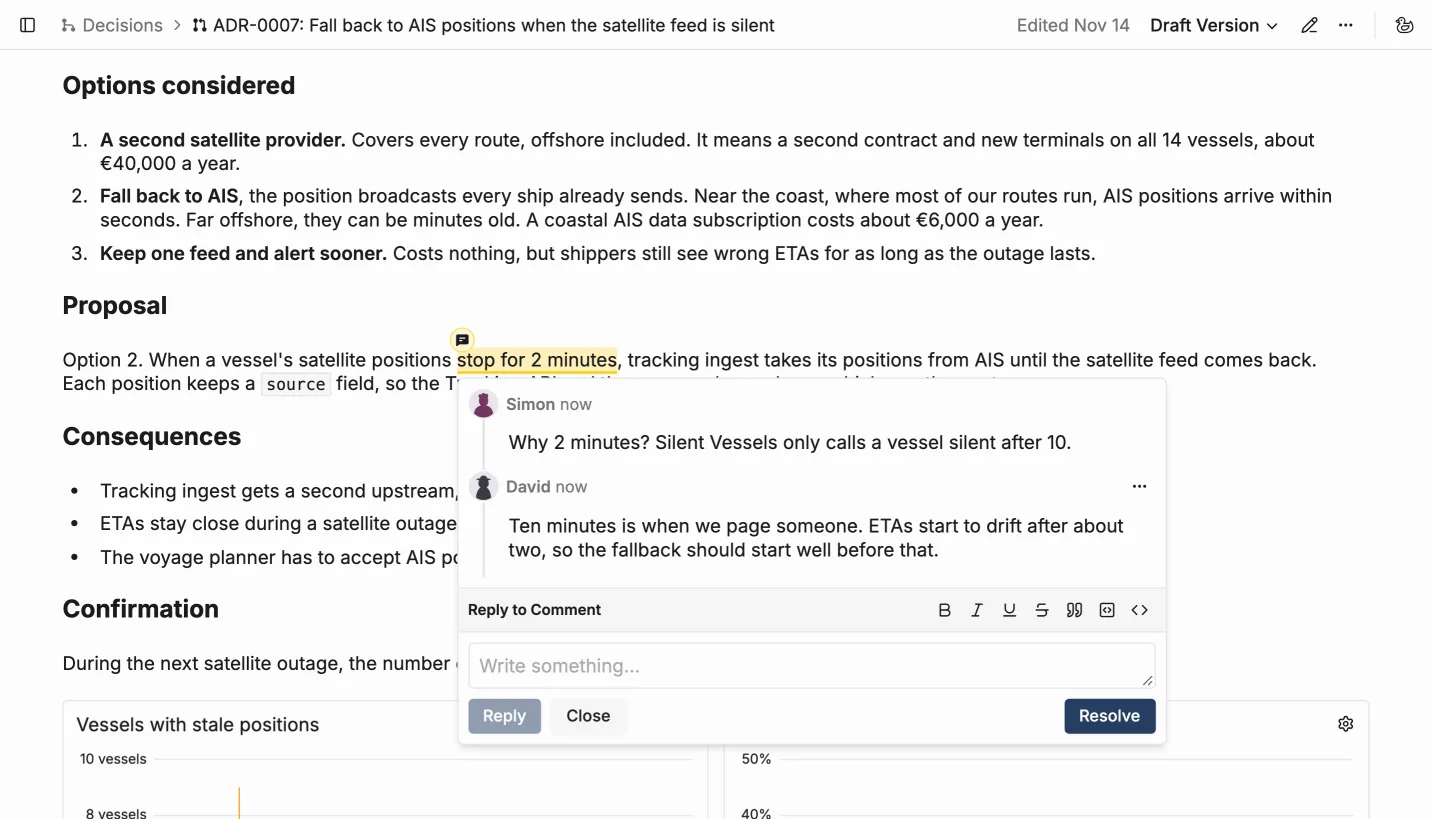
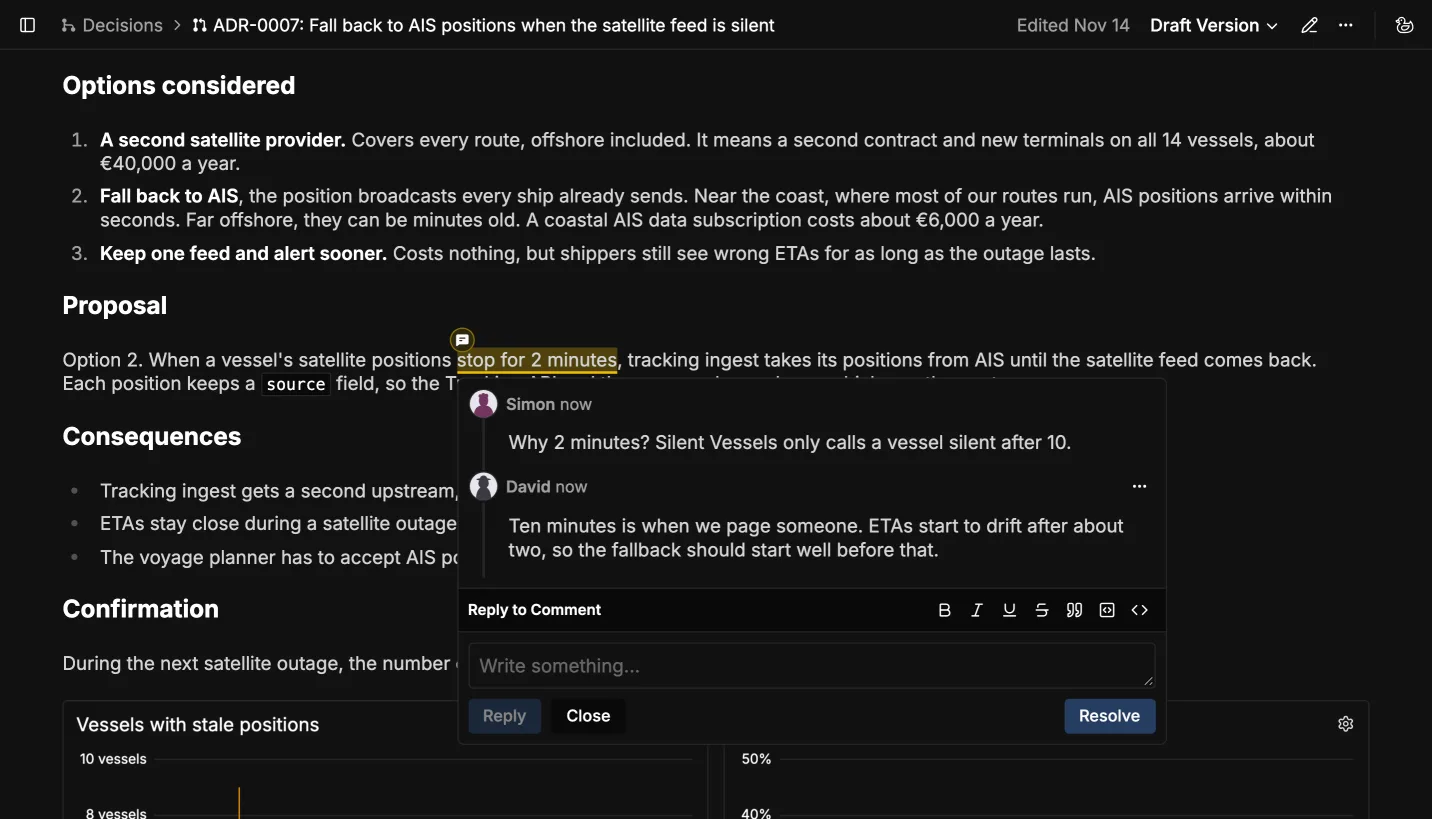 A reviewer's question on the proposal, and the author's answer
Comments stay with the draft. When the draft is merged, they don't carry over to the main version. So write the outcome of a thread into the page itself. Lastport's record explains its 2 minutes in the Decision section, because the question about it will come up again.
Approve It
To ask the decider for a review, click Reviewers in the page header and Invite to review. They get a notification in their Inbox, read the draft, and click Approve Draft at the top right of the page. The page header then lists them under Approved by.
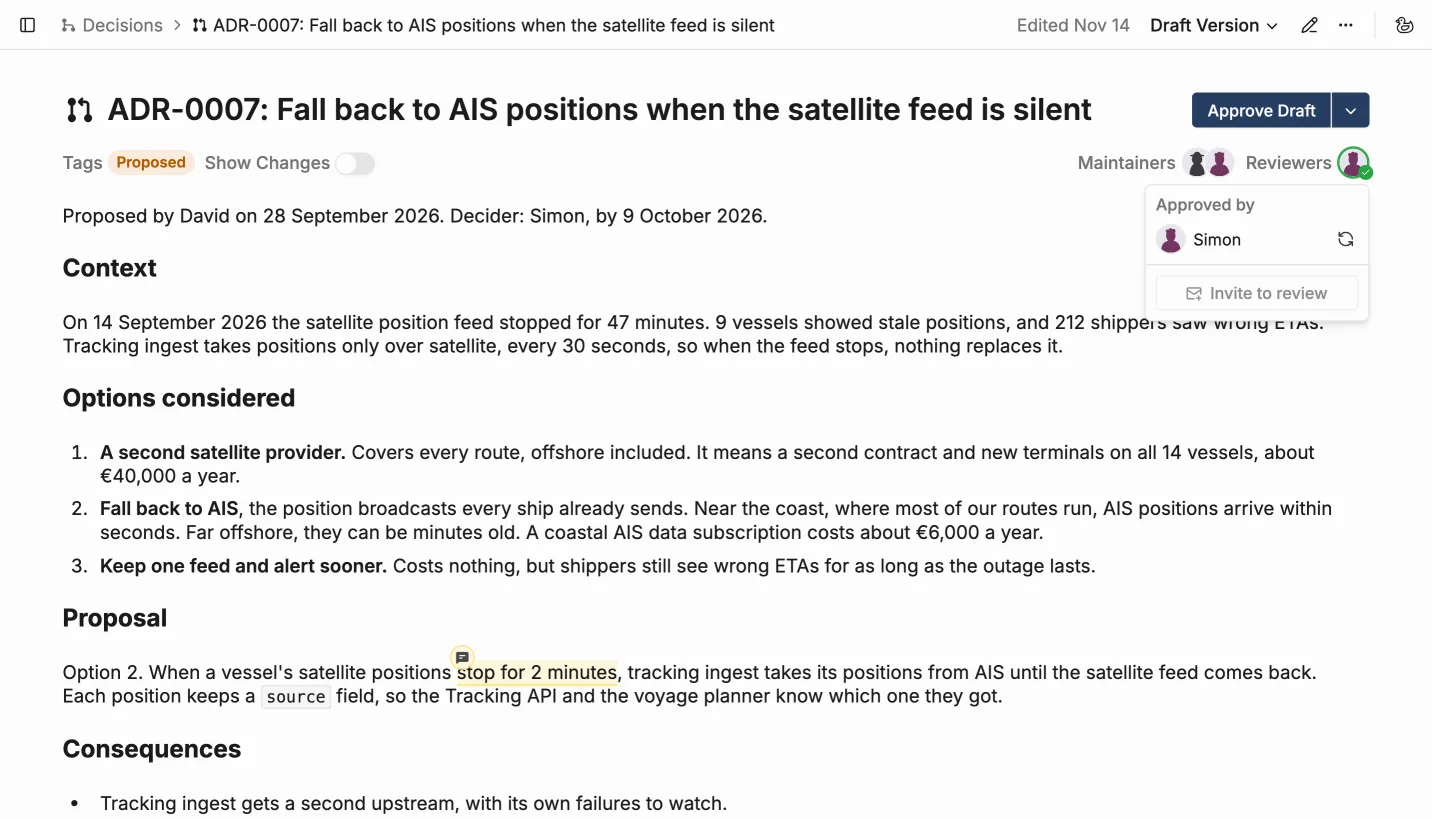
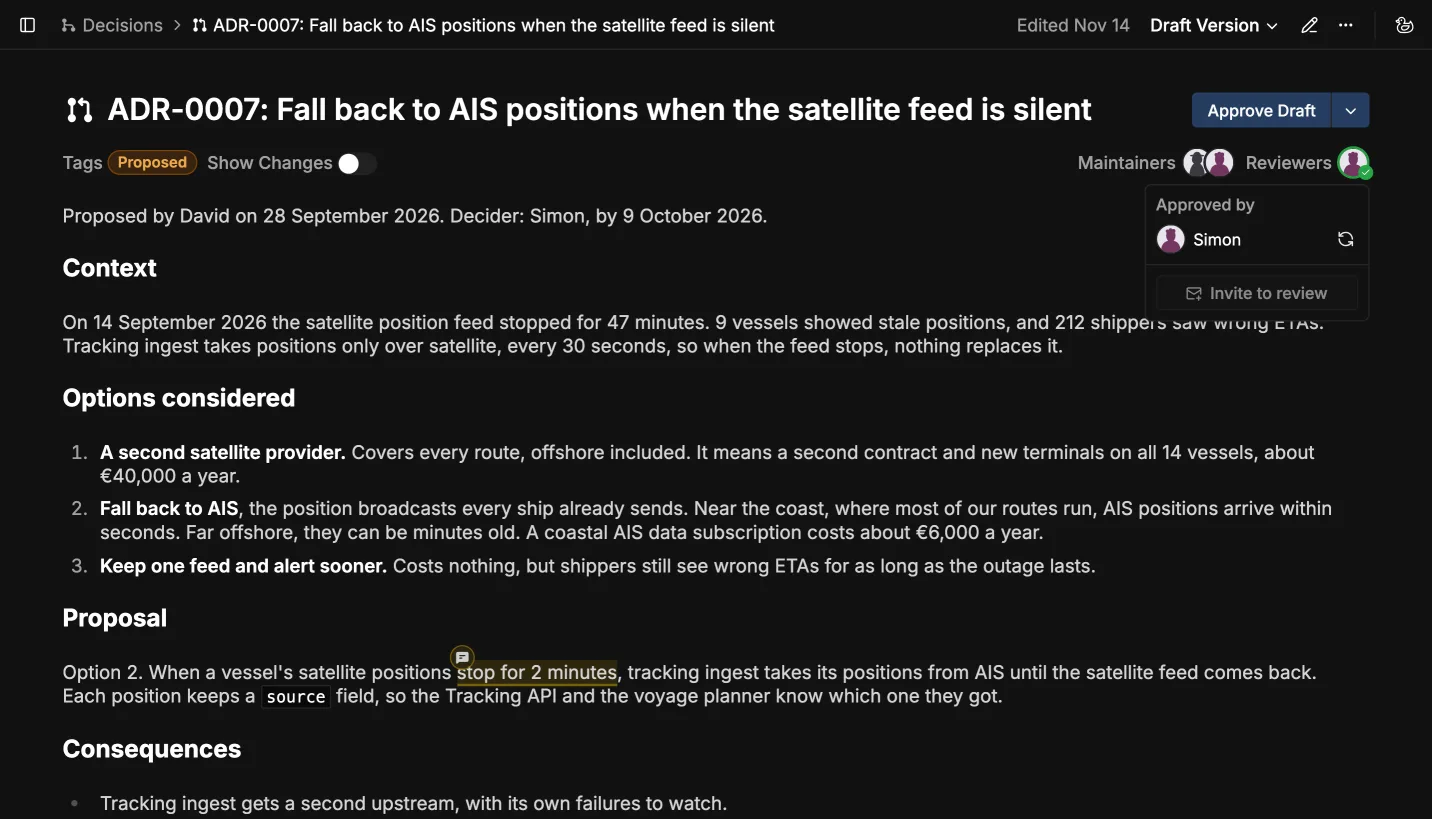 The decider's approval on the draft
An approval stays in place when the draft changes. So if you change the proposal after an approval, open Reviewers and click the refresh icon next to the reviewer's name to ask for another review.
Merge It as the Decision
Before merging, turn the proposal into the record in the draft, as the template section describes. Write who accepted it and when, and swap the Proposed tag for Accepted. Then click the arrow next to Approve Draft and choose Merge Draft into Main.
The main version is now the record, and it only changes through another draft.
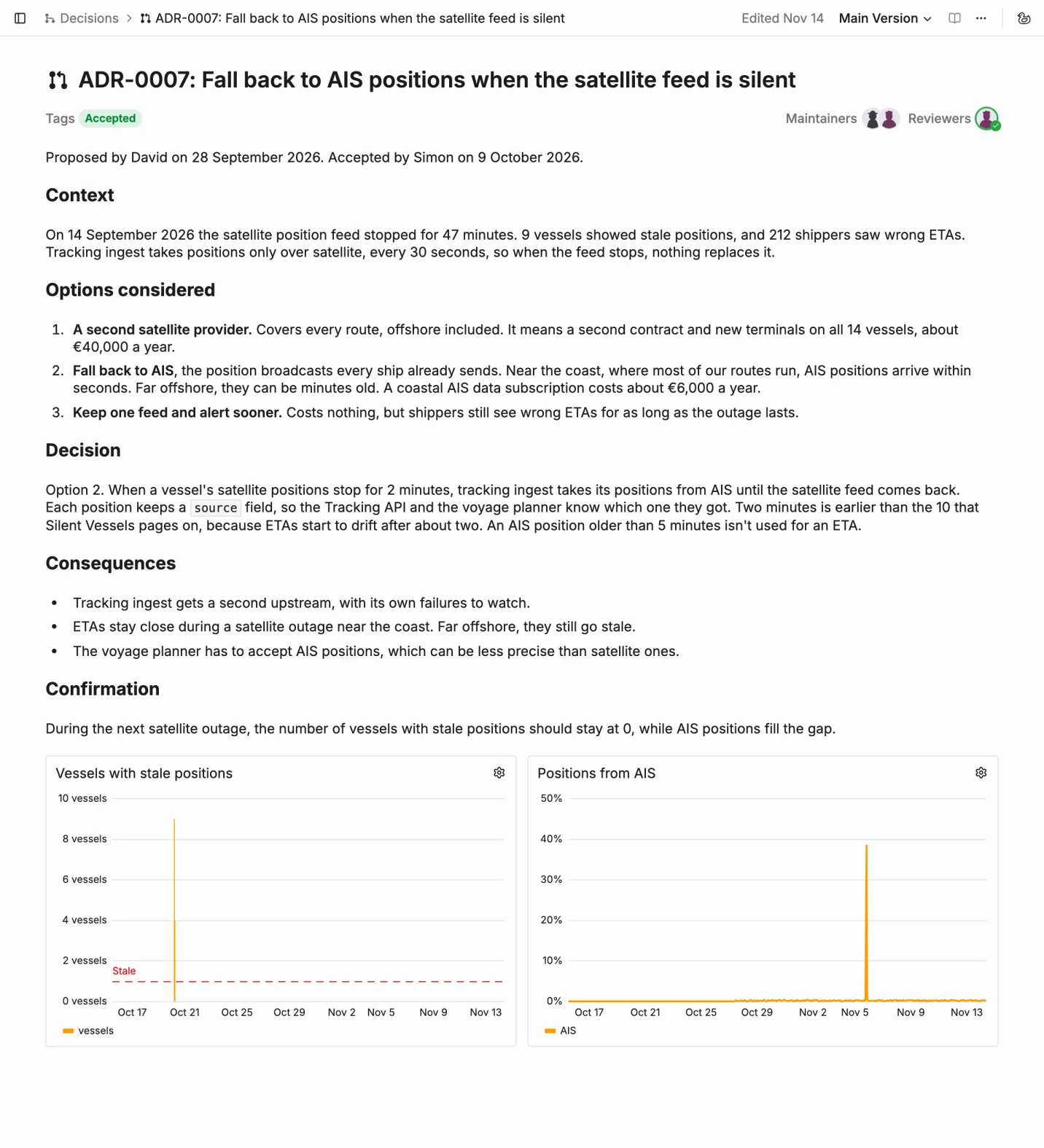
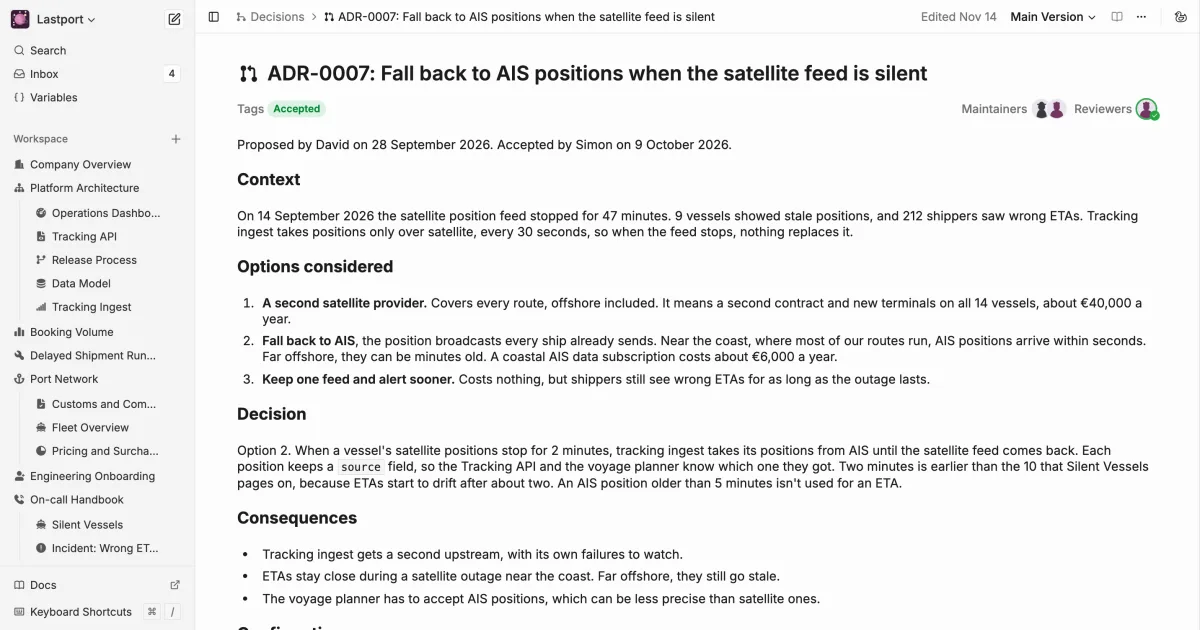
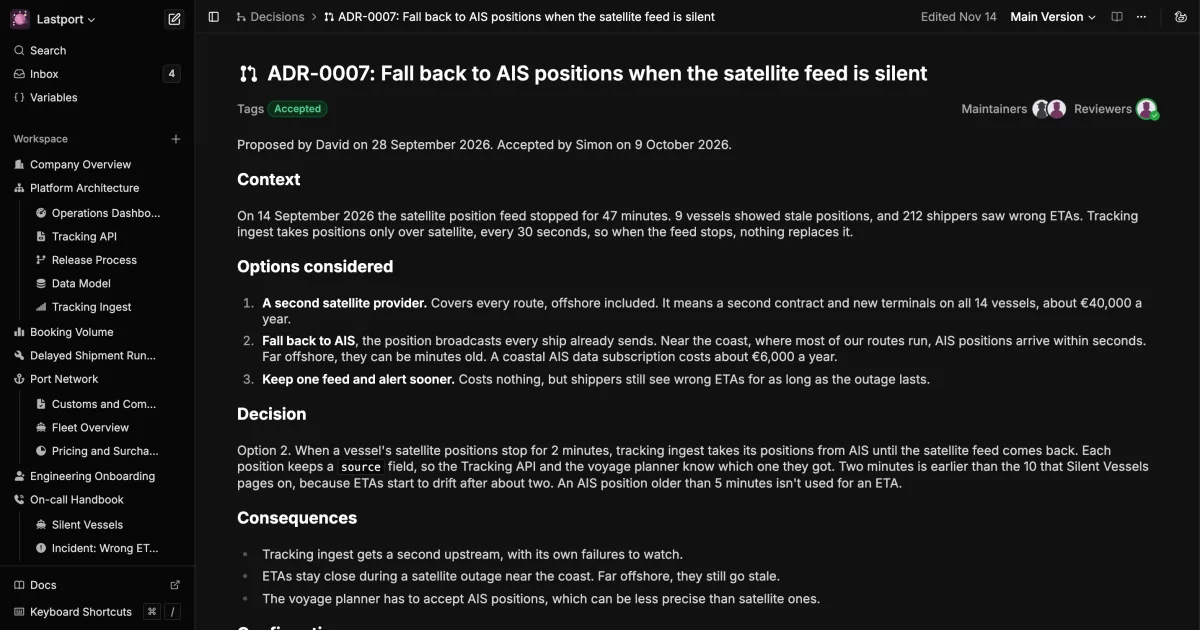
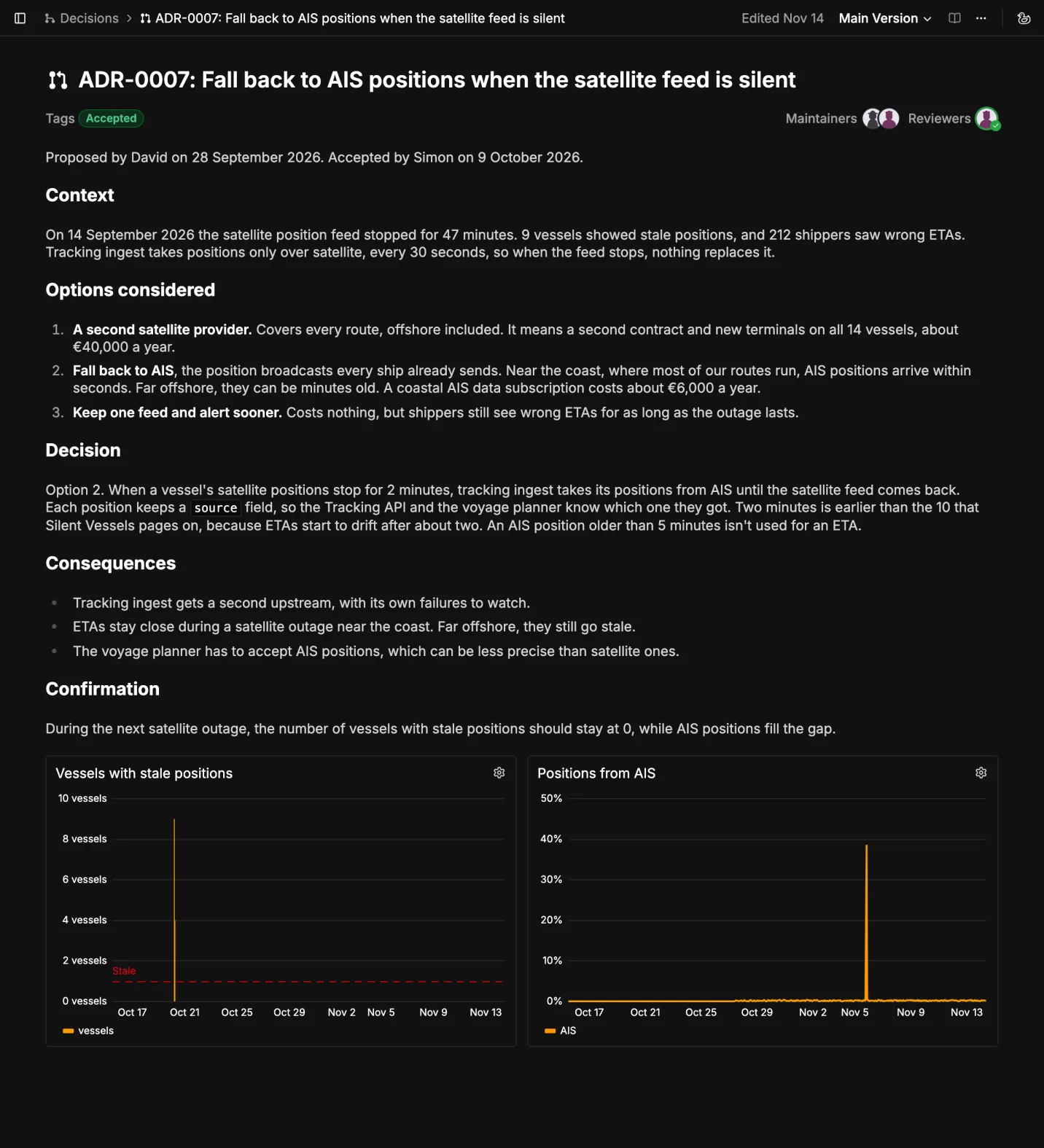 ADR-0007 after the merge, from top to bottom
Show Whether It Worked
To show whether the decision worked, put a Live Metrics chart under Confirmation. Type %% to add one. The chart runs its query each time someone opens the page, so the record shows today's numbers.
Lastport's record has two charts. The first counts the vessels with stale positions each hour, from Lastport's PostgreSQL:
SELECT $__timeGroupAlias(ts, '1h'), max(vessels) AS vessels
FROM stale_vessels
WHERE $__timeFilter(ts)
GROUP BY 1
ORDER BY 1
$__timeFilter keeps the rows inside the chart's time range, and $__timeGroupAlias groups them by hour.
The second shows the share of positions that came from AIS. In the satellite outage on 20 October, before the fallback shipped, 9 vessels went stale. In the next one, on 5 November, AIS filled in almost 40 percent of positions, and no vessel went stale.
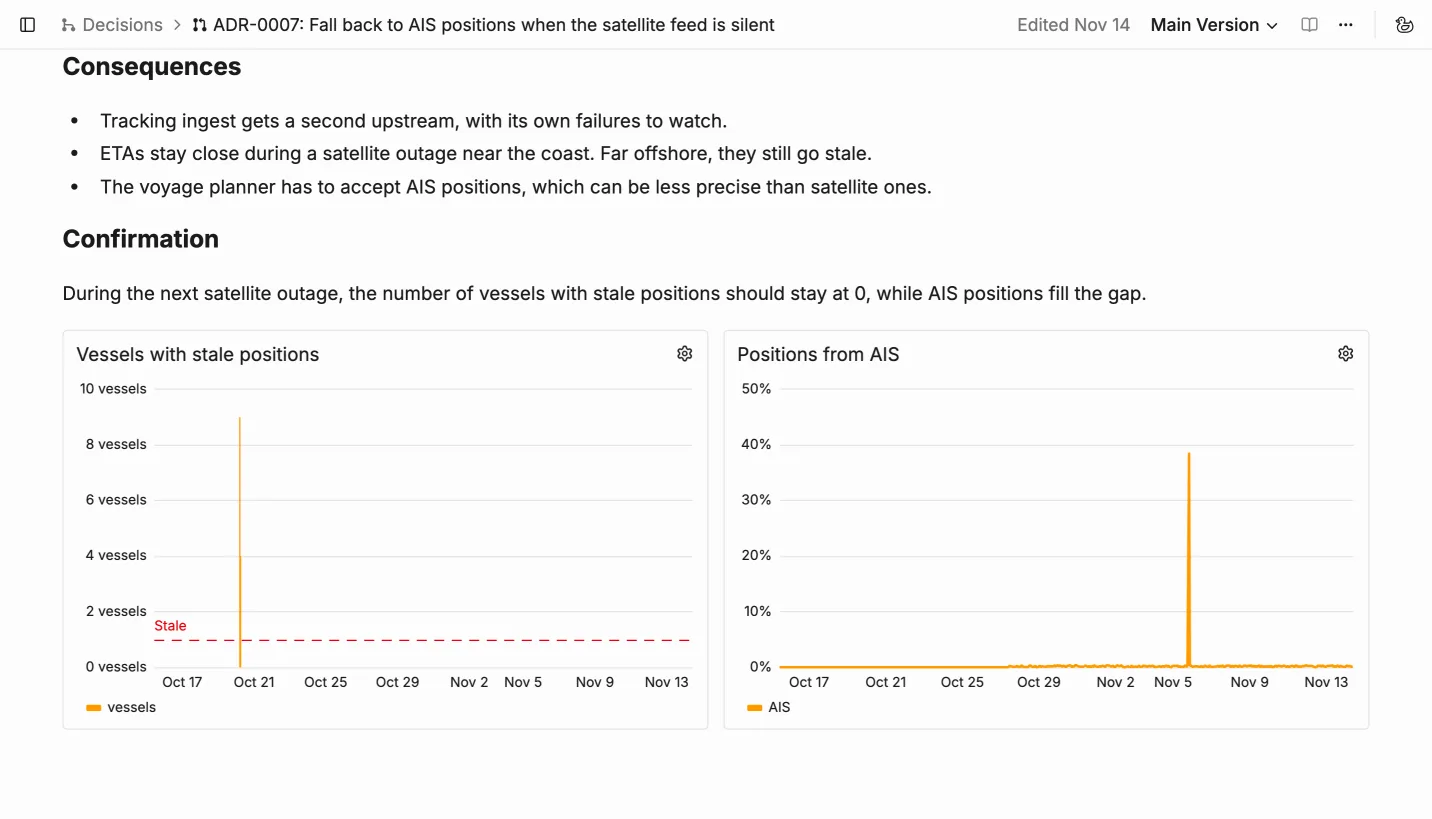
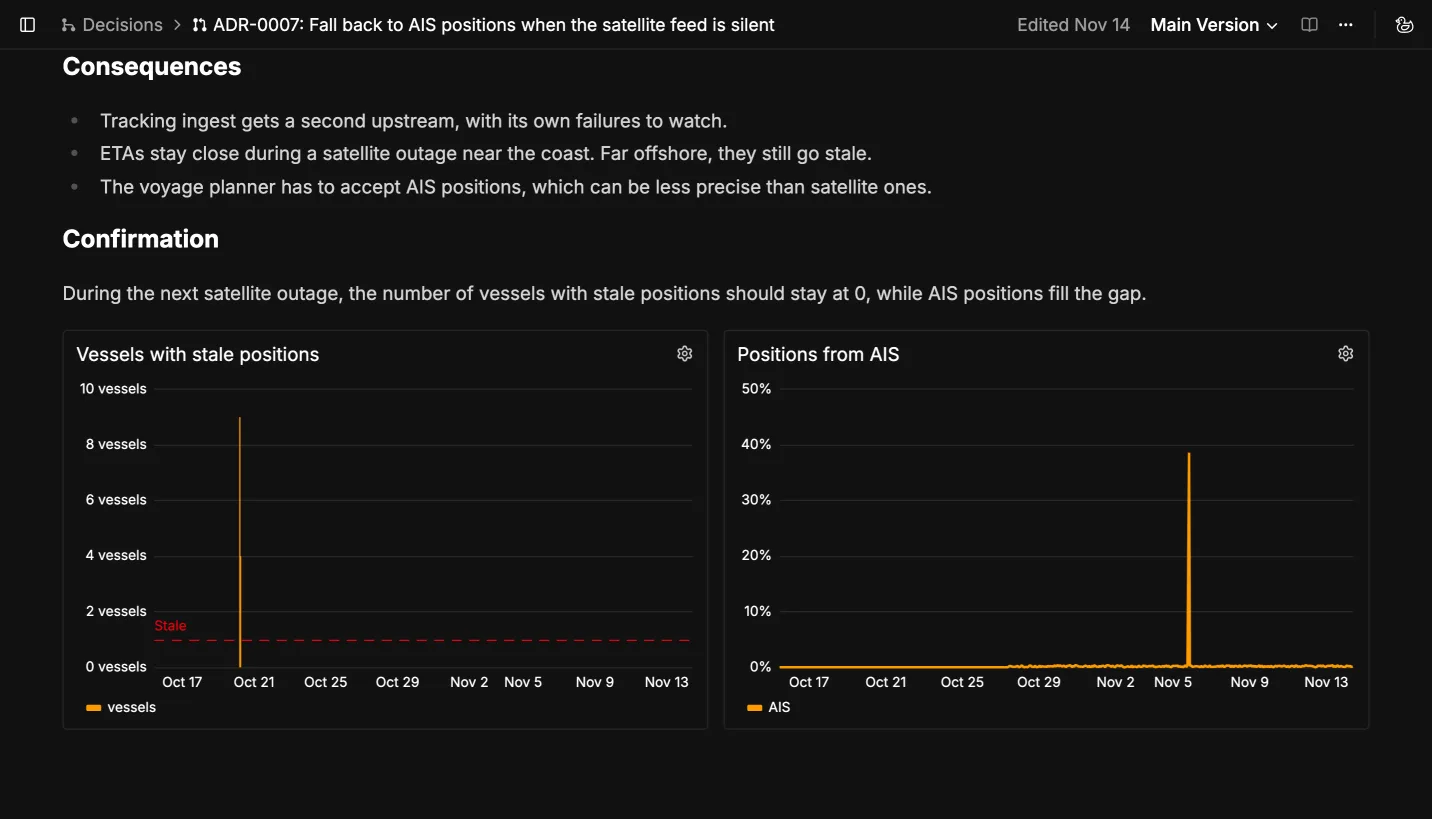 The decision's confirmation, live on the record
Revisit It
A decision that made sense when it was accepted can stop making sense months later. To be reminded, add a reminder in the draft before you merge it, since the main version is read-only. Hover the page title, click the leaf icon next to it, click Add Hook, and choose Scheduled Reminder. Merging copies it to the main version. Lastport's record asks for a read-through on 9 April 2027, six months after it was accepted. For your own record, choose In 6 months. When the date comes, the page's maintainers get a notification in their Inbox.
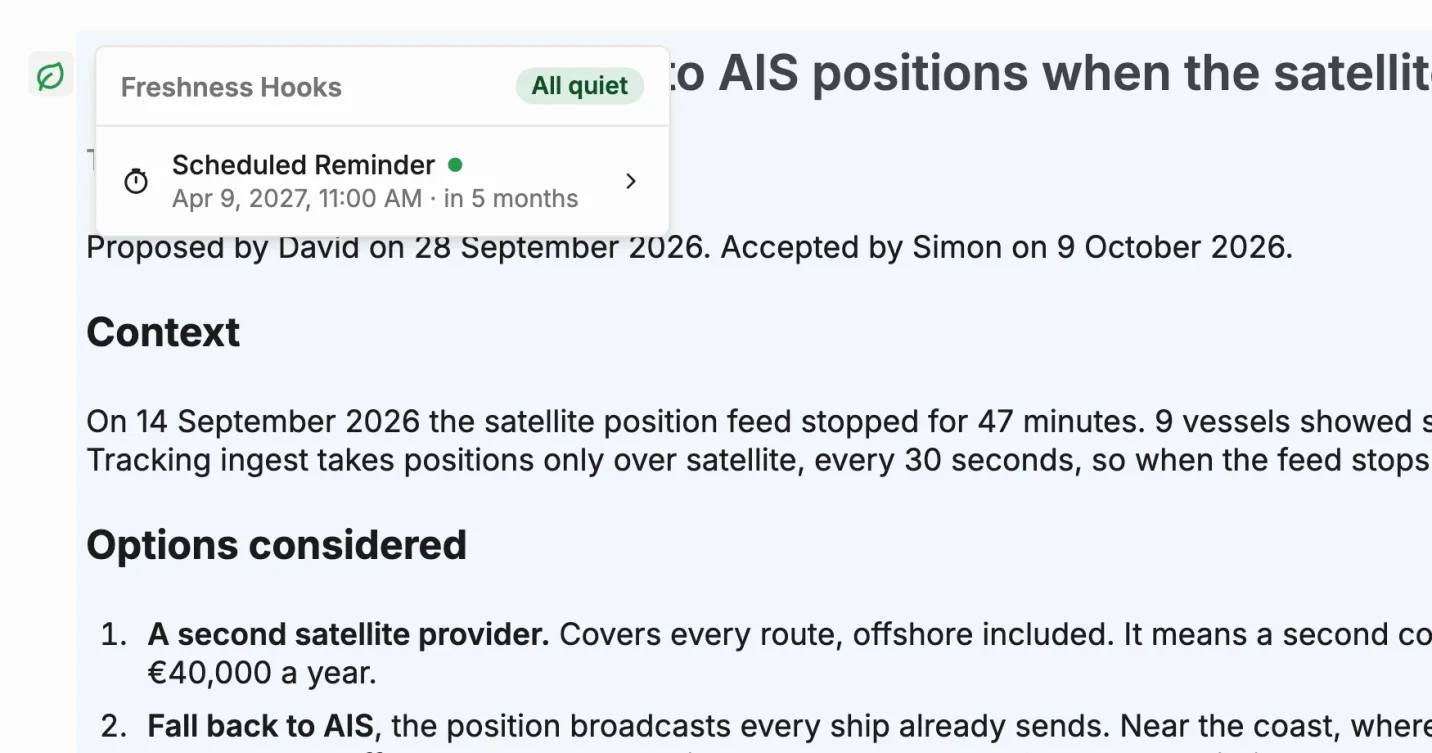
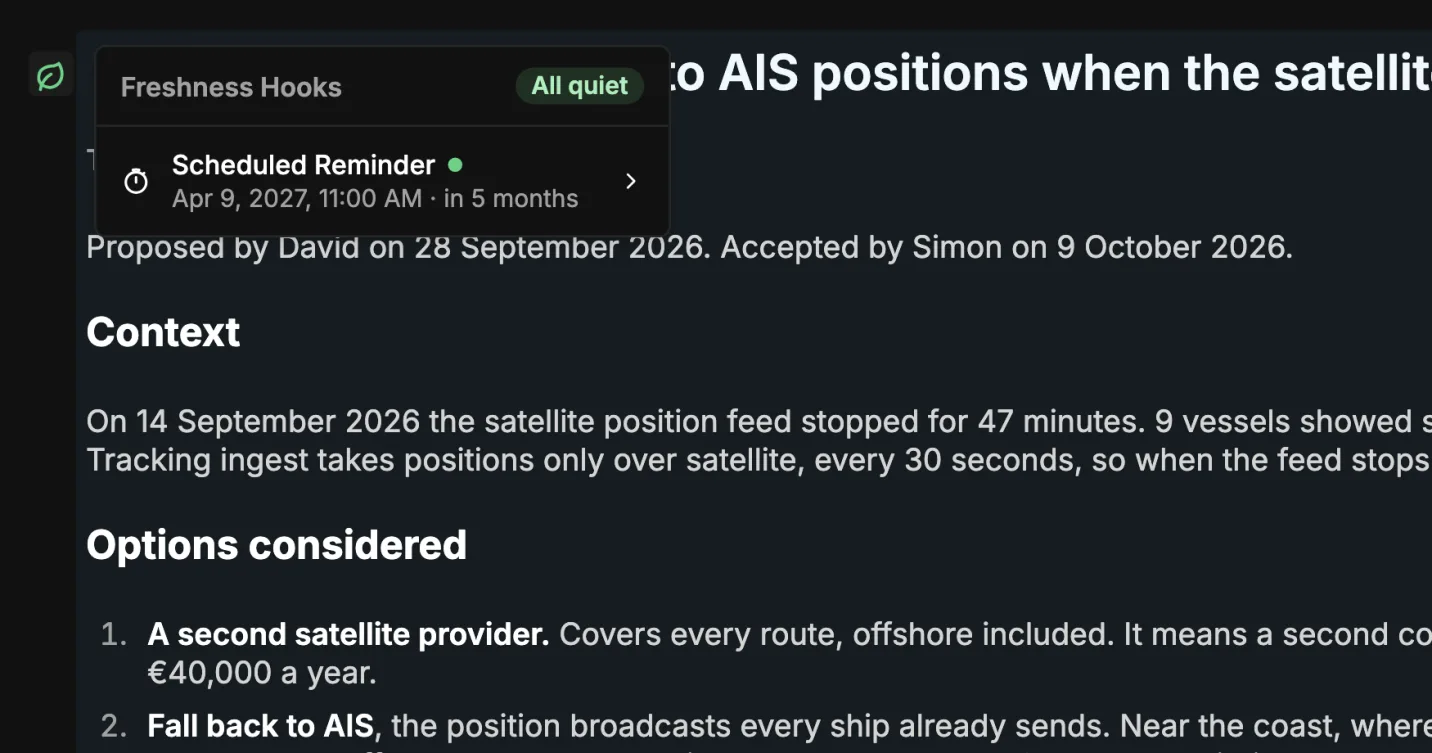 The record's reminder to revisit the decision
Supersede, Don't Edit
When a decision changes, write a new record instead of editing the old one. The new one says which decision it replaces. Tag the old record Superseded and add a link to the new one. That's the only change the old record gets. To get a page's link, copy its address from the browser, or click a block's drag handle and choose Copy Link to link to one section.
Find Decisions Later
Every record sits in one page tree, such as under a Decisions page. The sidebar's Tags section lists the pages under each tag, so the accepted decisions are one click away. To find a decision by what it says, press ⌘K (Ctrl+K on Windows and Linux) and search across every page.
Wrapping Up
A good proposal names its decider and deadline, compares real options, and says what makes it done. In Oxynote, the proposal is discussed in a draft, approved by the decider, and merged as the record. Its Confirmation section shows live whether the decision did what it promised.
A good place to start is the next decision your team argues about. Copy the template into a reviewable page, and invite the decider to review it. To put live charts under Confirmation, see how to connect Prometheus, PostgreSQL, or Loki.
Oxynote is open source and runs as one Docker container: github.com/oxynote/oxynote. If you need help or have a suggestion, come talk to us on Discord.